
How do I copy the link to my Microsoft Teams meeting?
Your Microsoft Teams meeting link is the Join the meeting URL created when a meeting is scheduled. Below is how to copy it from Microsoft Teams or Outlook (desktop & web) — and how to create one if you don't have a meeting yet — then shorten it into a clean, shareable msteams.link URL.
Short answer: open the meeting in your Teams or Outlook calendar, then right-click Join (or the meeting link) and choose Copy link. During a meeting, open People → Share invite → Copy meeting link.
How to copy a Microsoft Teams meeting link
In Microsoft Teams (desktop & web)
- Open Calendar in Microsoft Teams and open your meeting.
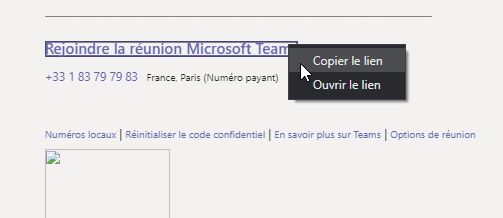
- Right-click the Join link (or use Copy link in the meeting details) and choose Copy link.
- The Teams meeting link is now on your clipboard, ready to paste or shorten.
In Outlook for Windows (desktop client)
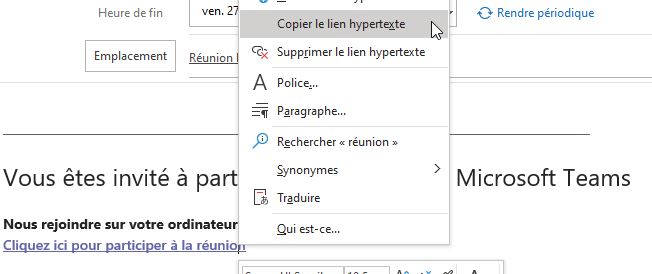
- Open your Outlook calendar and open the event linked to the Microsoft Teams meeting.
- Right-click the meeting link and select Copy Hyperlink.
- The link is copied — paste it anywhere, or shorten it below.
In Outlook on the web
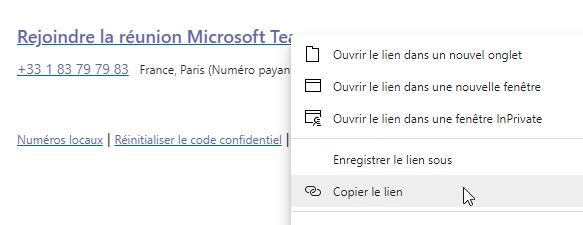
- Open your Outlook Online calendar and open the meeting event.
- Right-click the meeting link and select Copy link.
- The Teams meeting link is ready to paste or shorten.
Other situations
During a meeting
- In the meeting controls, select People.
- In the participants pane, select Share invite.
- Choose Copy meeting link, then paste it in a chat or an email.
For a recurring meeting
- Open the meeting in your Calendar (any occurrence of the series).
- Copy the link next to Join, or right-click Join → Copy link.
- All occurrences of a series share the same link: shorten it once and reuse it.
In the Teams mobile app (iPhone, Android)
- Tap Calendar, then tap the meeting.
- Tap Share (or Share invite, depending on the version).
- Choose Copy or Copy link and paste it where you need it.
In Microsoft Teams (free)
- Open Calendar or the meeting chat, then select the meeting.
- Select Copy link (or Share via → Copy link).
- These links start with
teams.live.com/meet/: MSTeams.link shortens them too.
For a channel meeting
- Open the team, then the channel where the meeting was scheduled.
- Open the meeting from the channel posts or from your Calendar.
- Right-click Join → Copy link, as for any other meeting.
How to create a Microsoft Teams meeting link
Schedule a meeting to generate a link
- In Microsoft Teams, go to Calendar → New meeting (or in Outlook, create an event and turn on the Teams meeting toggle).
- Add a title and save. Teams automatically generates a Join the meeting link.
- Open the meeting and copy that link using the steps above.
Common problems
The link is not there yet
On a new meeting, Outlook adds the Teams “Join” block only when the meeting is saved or sent. Save it, then open it again from the calendar to copy the link.
The copied link starts with “safelinks”
Links in received emails can be rewritten by Microsoft Defender Safe Links (…safelinks.protection.outlook.com/?url=…). Copy the link from the meeting in your calendar instead of the email.
Which link should I share?
Share the link after Join. The long “System reference” link opens the same meeting and is used by meeting-room devices.
Full guide with screenshots: how to find and copy a Teams meeting link in Outlook.
Related guides
- How to share a Teams meeting link easily
- Join a Teams meeting without an account or app
- Send a Teams link by SMS or email without breaking it
- Create a QR code for a Teams meeting
- Why Teams links are so long (and how to shorten them)
- Short link vs Teams meeting link
- Does Microsoft have a URL shortener?
Shorten your Teams link
Turn that long meeting URL into a short msteams.link — free, no account, QR code included.
Shorten a Teams link →